What changed
- A cleaner HP menu now puts Levels, Profile, and Flow in separate tabs on both NinjaTrader and Quantower.
- Expiration Group and History Window are shared between Levels and the existing same-chart Flow indicator.
- The new Max history choice uses the days loaded on the chart, capped at 30 days.
- The optional strike Profile can use Open Interest or Volume with Gamma, Delta, Vanna, or Charm exposure.
- Flow can show Open Interest, Volume, or two separate lanes for Both. Gamma, Delta, Vanna, and Charm can be selected together.
- History still loads once and later refreshes use bounded updates. The update does not create a second Flow client or require a new runtime key.
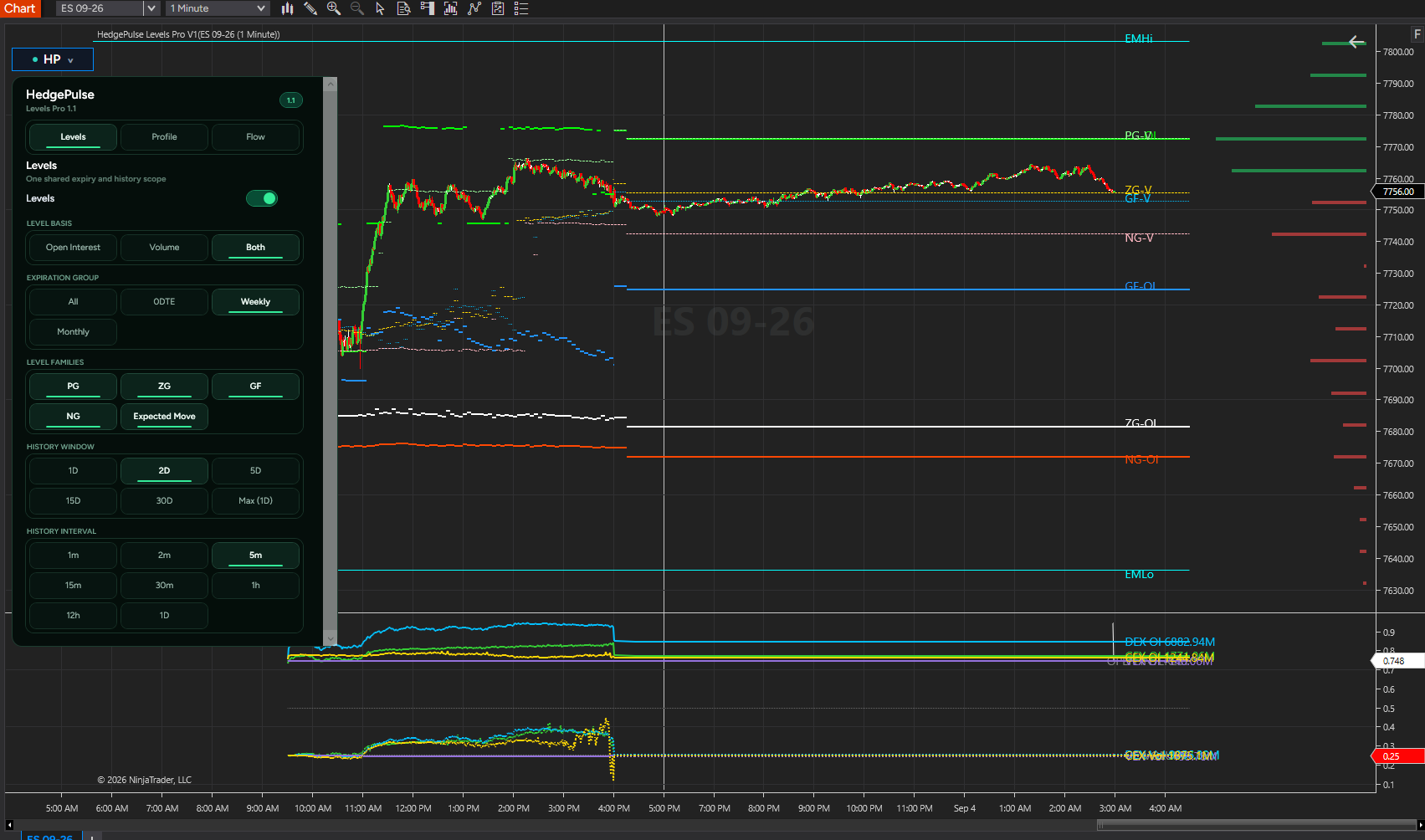
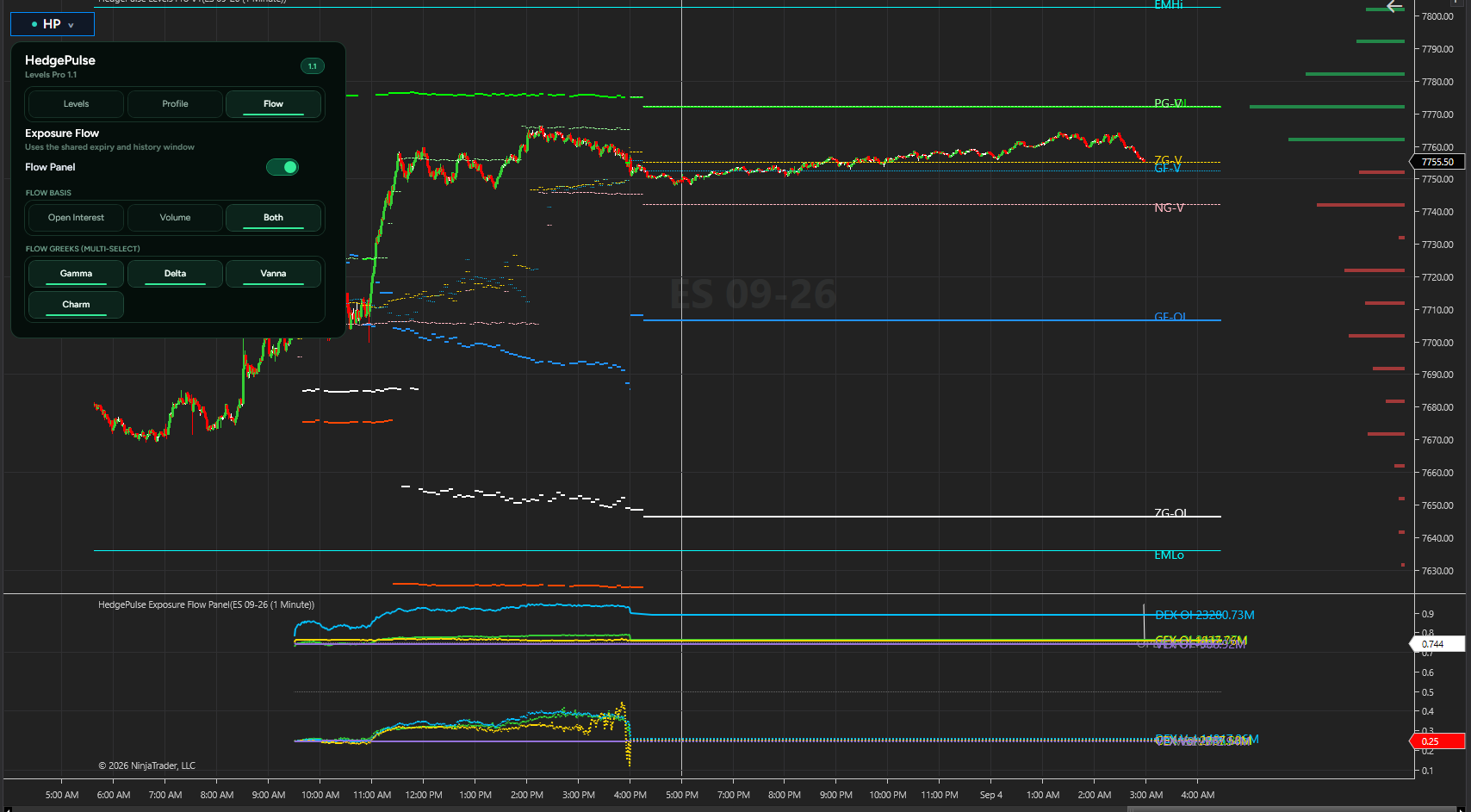
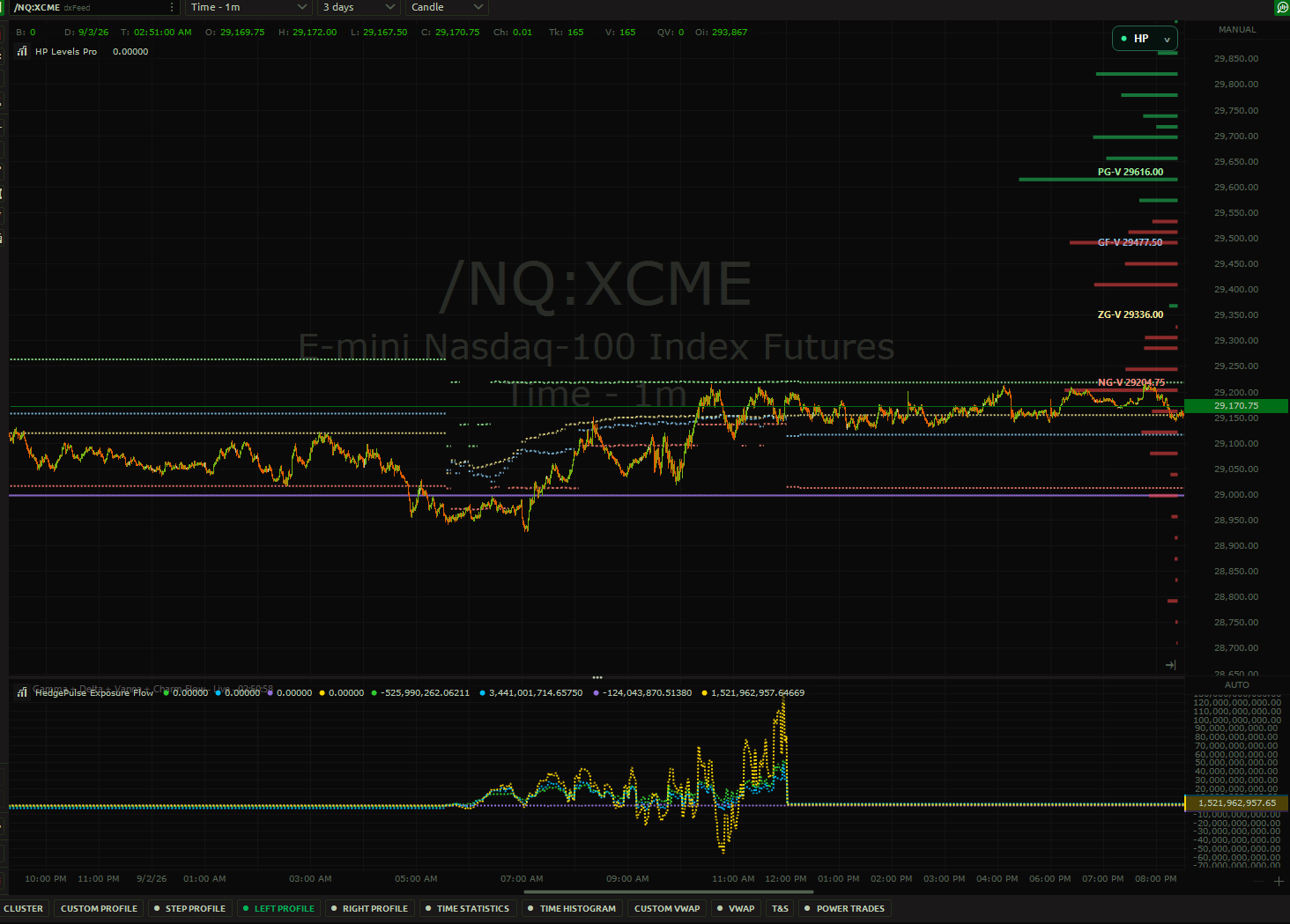
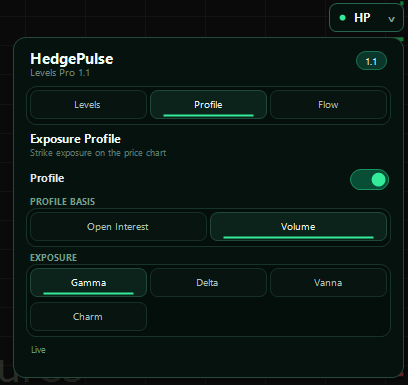
Update NinjaTrader
- Sign in to HedgePulse and open Account → Downloads.
- Download the current Levels Pro NinjaTrader package and save your NinjaTrader workspace.
- Close charts using Levels Pro, then choose Tools → Import → NinjaScript Add-On in NinjaTrader.
- Select the downloaded ZIP and approve replacing the existing HedgePulse scripts if prompted.
- Restart NinjaTrader. Add HedgePulse Levels Pro V1 and, when wanted, HedgePulse Flow Panel to the same chart.
- Enter the same Levels Pro Account Email and Runtime Key in both indicator settings, click Apply or OK, and save the workspace.
The ZIP includes a README with a manual source-copy fallback if NinjaTrader cannot complete the normal import.
Update Quantower
- Sign in to HedgePulse, open Account → Downloads, and download the current Levels Pro Quantower package.
- Close Quantower completely and unzip the package.
- Copy
HedgePulse.LevelsPro.Quantower.dllinto the active QuantowerSettings\Scripts\Indicators\HedgePulsefolder. In the verified standard installation, the full path isC:\Quantower\Settings\Scripts\Indicators\HedgePulse. - Keep backup DLLs outside every
Scripts\Indicatorsfolder because Quantower scans its indicator subfolders recursively. - Restart Quantower, add HP Levels Pro and HedgePulse Flow to the same chart, and enter the same Account Email and Runtime Key in both normal gear/settings screens.
- Click Apply or OK, save the workspace, then use the HP button at the upper-right of the chart.
Quantower and NinjaTrader remain two downloads under the same Levels Pro product. Existing ownership, Elite dependency, Account Email, and Runtime Key rules are unchanged.