Choose your layout
The first time you open a workspace after this update, HedgePulse asks you to Choose your workspace layout. Nothing is preselected. Pick one to continue.
| Layout | What it looks like |
|---|---|
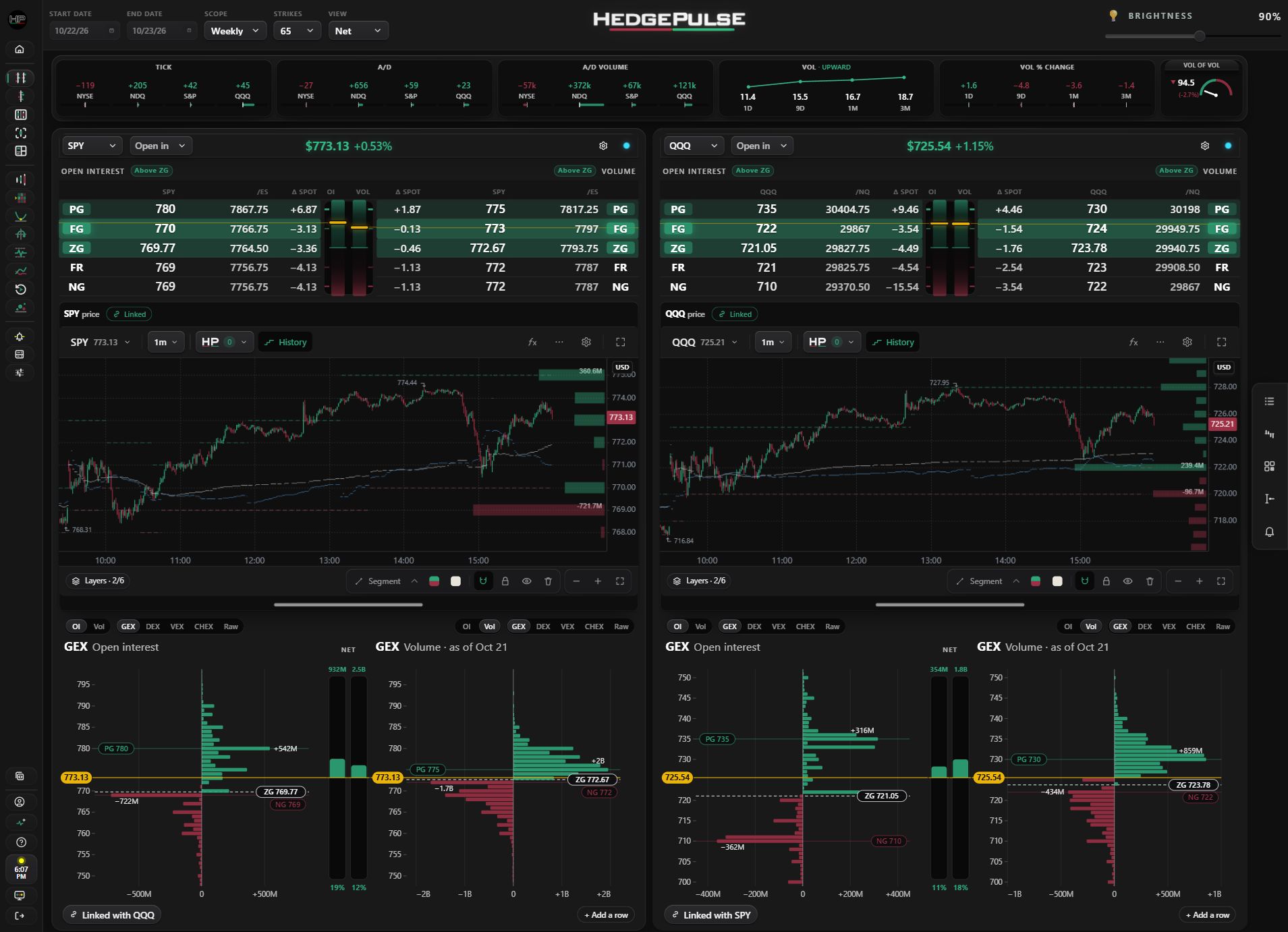
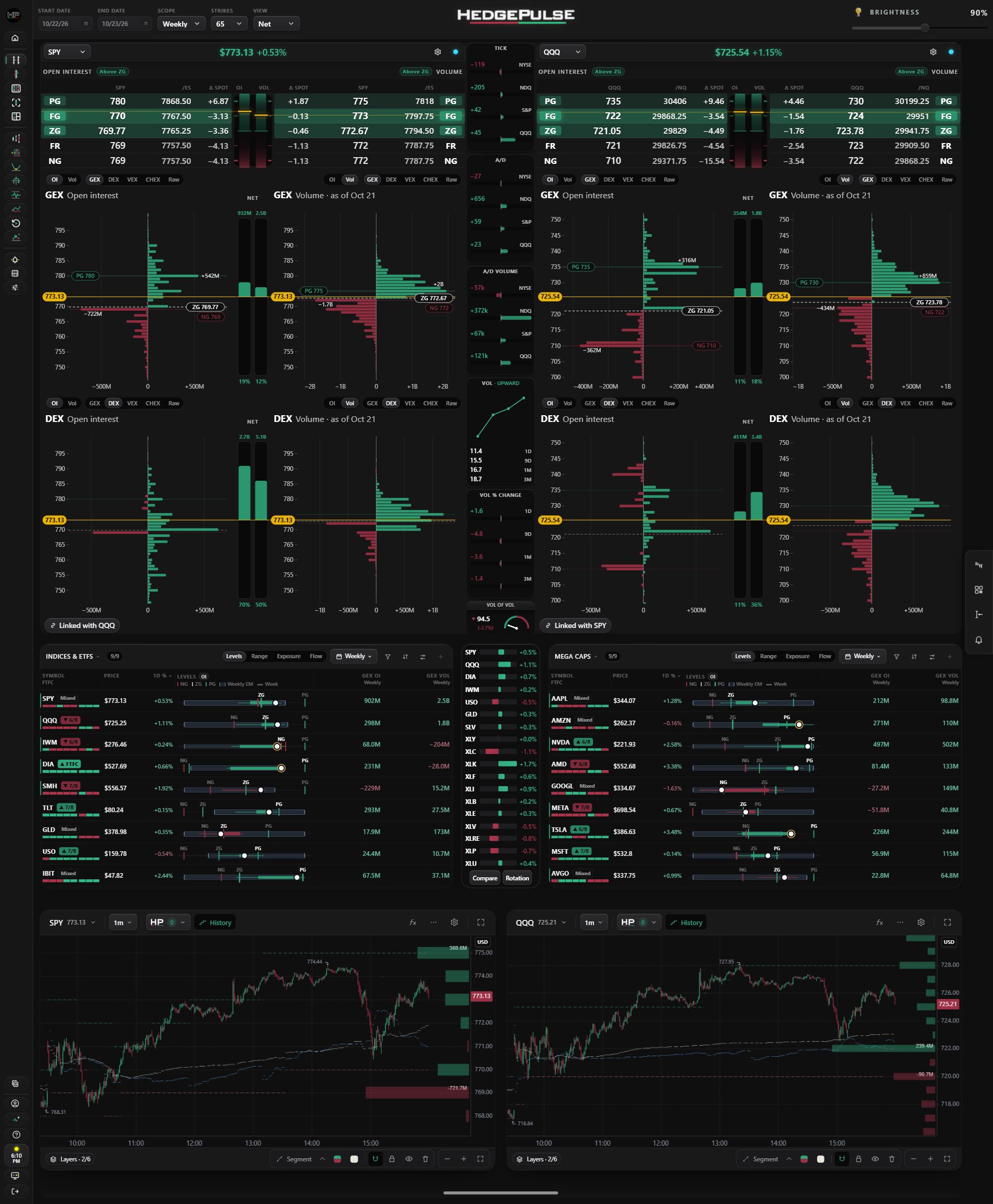
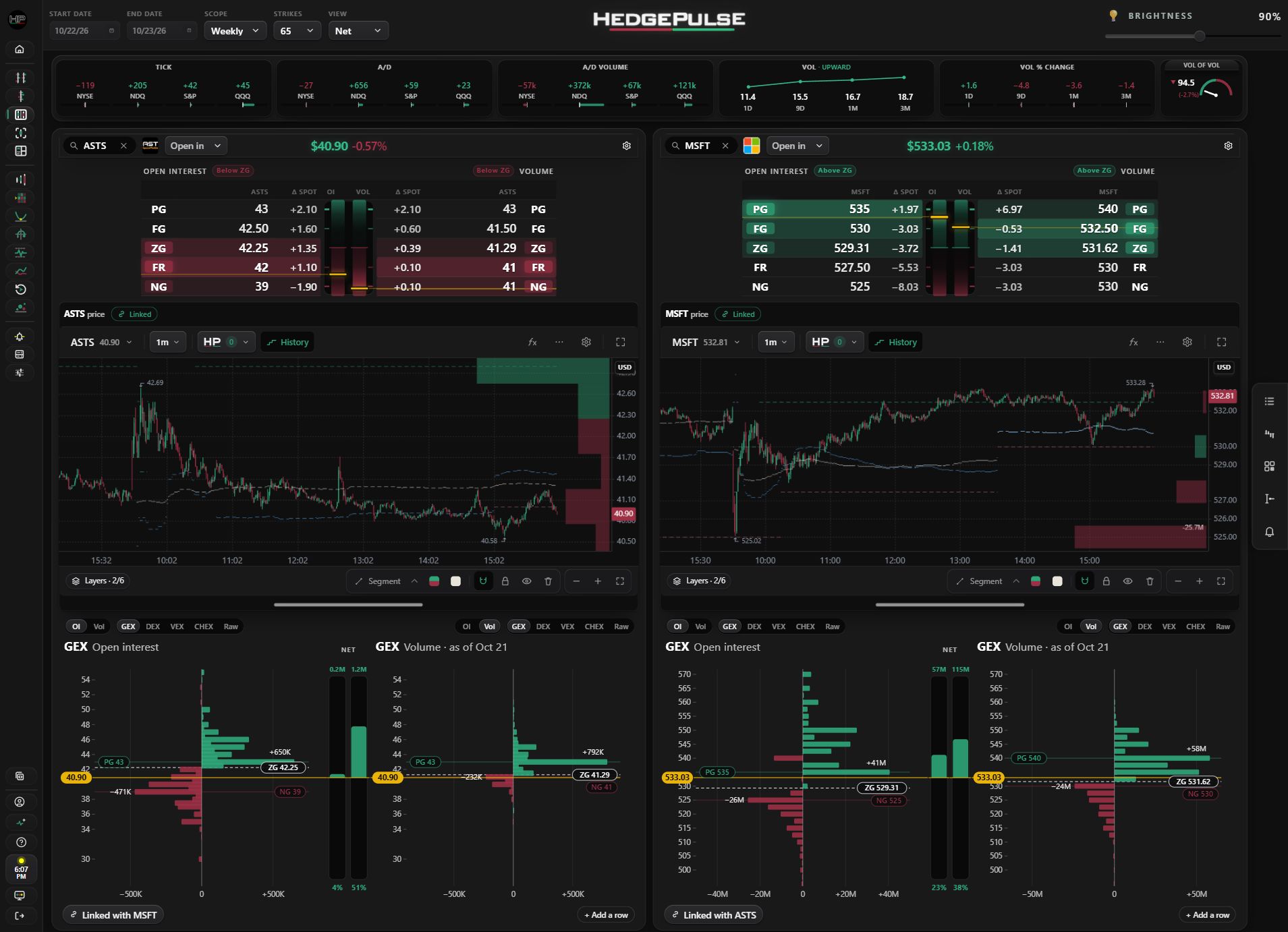
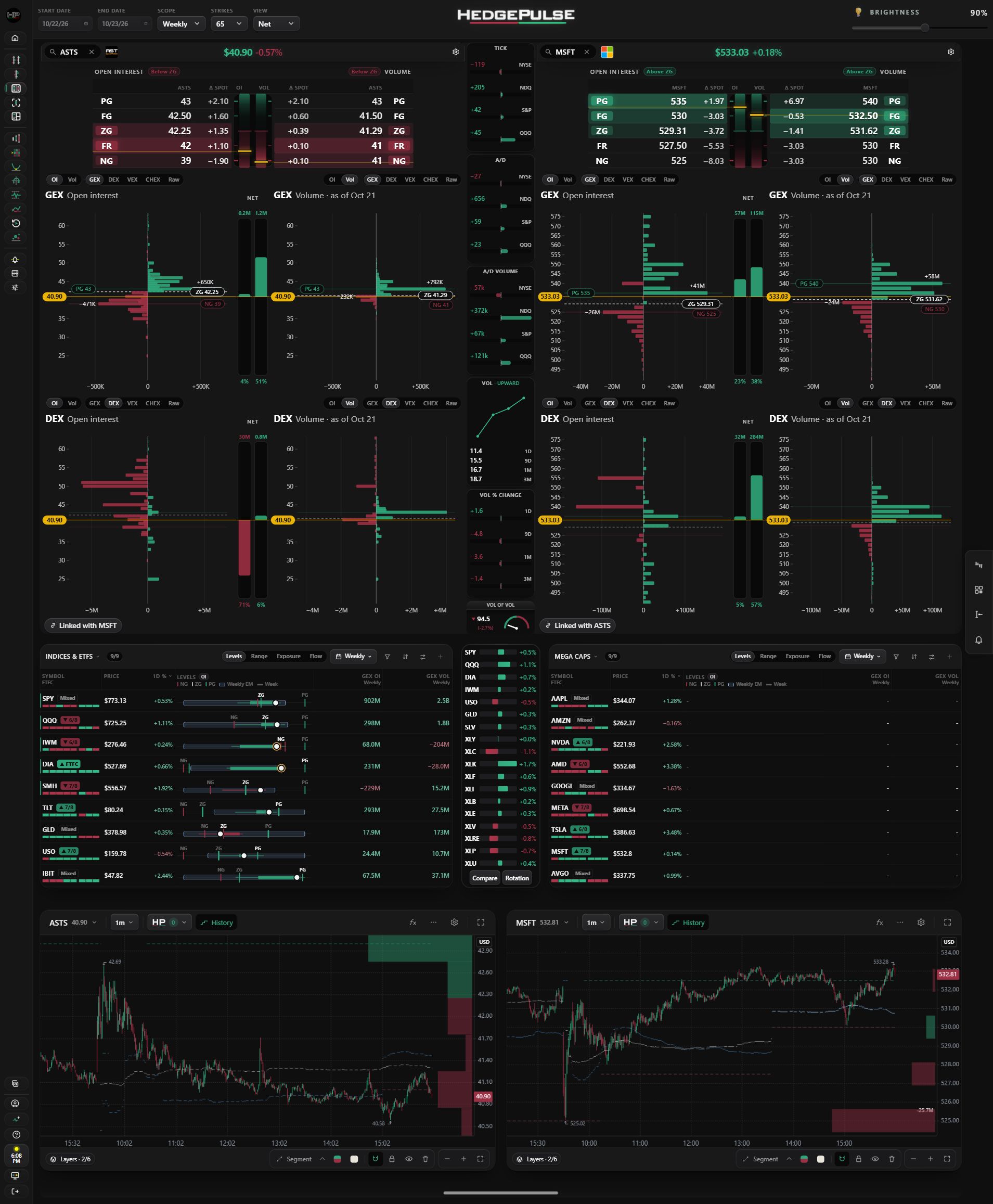
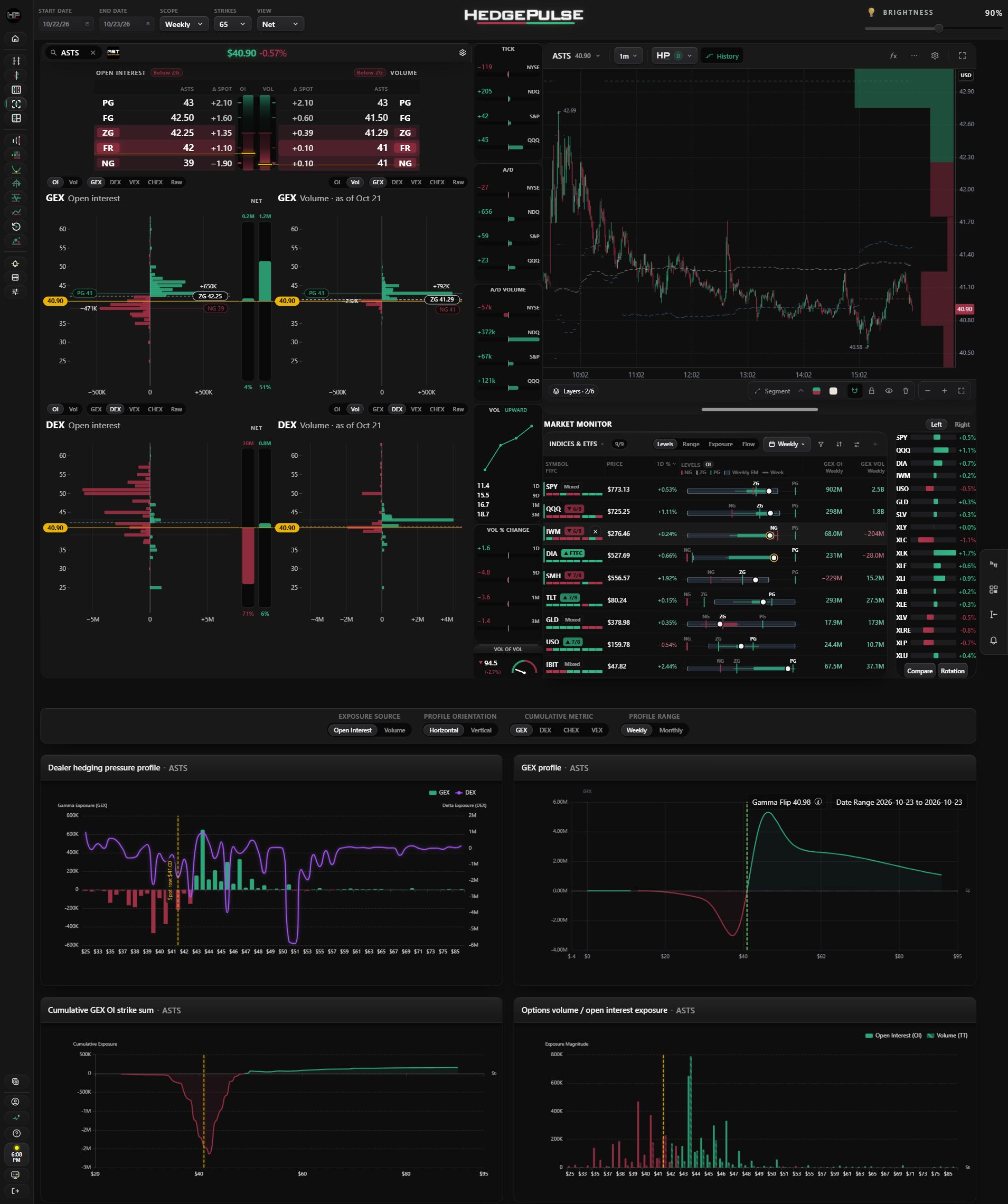
| Classic | On paired pages, levels and strike charts sit above Market Monitor and the price charts. On Index and Stock, levels and strike charts sit beside the price chart, with Market Monitor, sectors and Compare always underneath the right price chart. |
| Symbol columns | Paired pages group each symbol's levels, price chart and strike charts in its own column. Index and Stock place the levels and strike charts beside the price chart, with Market Monitor, sectors and Compare always underneath it. |
The choice applies to Index², Index, Stocks² and Stock. Change it any time in Display settings → Workspace layout.
The picker then asks two more questions:
- Market internals. Choose the Style for both layouts: Today's matrices or Compact numbers. In Symbol columns, also choose Where it goes: Top strip, Under the price charts, Under the strike charts or Center column. Classic keeps internals in the center column.
- Market Monitor (Symbol columns only). Choose a Slide-out panel, which loads nothing until you open it, or Bottom of page. Bottom of page is the default, and existing saved choices stay saved. On Index² and Stocks² this controls whether the monitor sits beneath the paired columns or in the side rail. Index and Stock always keep it beneath the right price chart.
Compare the captured layouts
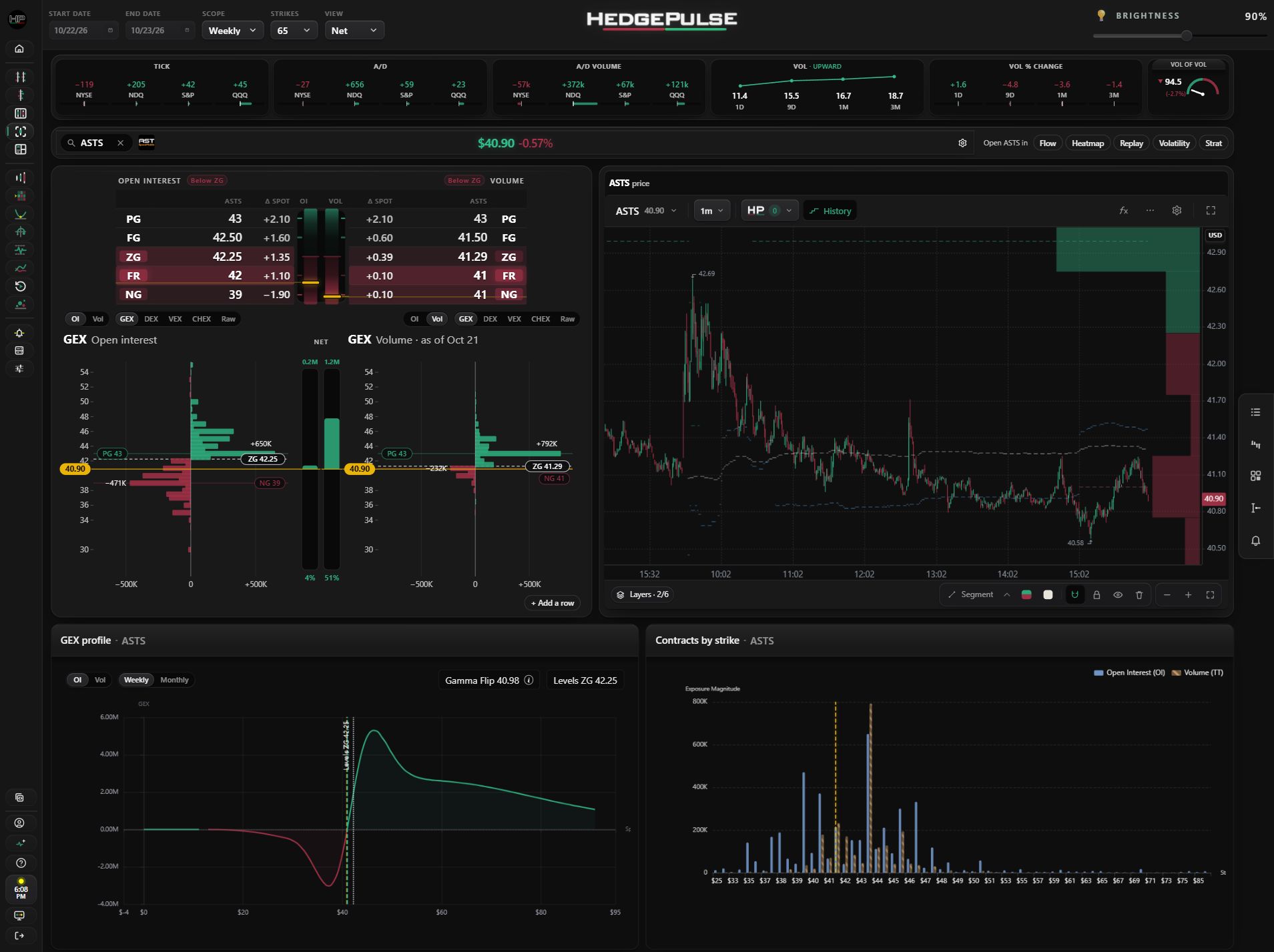
These are historical October 21 Preview captures. They precede the Gamma/Delta default rows and the responsive layout refinements described below.
Index²
Stocks²
Stock
Read a symbol column
In Symbol columns, each column holds one symbol from top to bottom:
- The header, with Open in links to Flow, Heatmap, Replay, Volatility and STRAT.
- The levels table. Hover a level to light it up on the price chart.
- The price chart. On paired pages, the chain button is inside the chart toolbar. When it is on, crosshairs and timeframes follow across both charts: choose 5m on either chart and both use 5m. Turn it off for independent timeframes. Turning it back on uses the chart whose chain you clicked.
- The strike charts.
Stock and Index show the same strike-chart set in both layouts: Gamma OI and Volume, then Delta OI and Volume by default. Market Monitor, sectors and Compare always sit directly under the right price chart, including when Slide-out panel is saved.
The GEX profile and Contracts by strike charts sit below the main workspace in both layouts. The profile offers OI/Vol and Weekly/Monthly controls. Drag the grip below the price chart to resize it; double-click the grip to reset its height. The chart's HP menu also works in fullscreen.
Narrow screens stack the workspace sections without changing your desktop layout choice. On phones, price and percentage share a smaller row below the symbol controls. Turning the phone sideways replaces the left navigation rail with a hamburger button.
In Display settings → Appearance, Auto uses Standard sizing at 1440p, with Small density as the default. At 1080p, Auto is about 10% smaller than the previous Auto layout, so you can keep browser zoom at 100%. Your explicit interface-size and density choices stay saved.
Hover over the left sidebar, then click Keep sidebar open to leave it expanded. Click Collapse sidebar to return to the compact rail.
Pick what the strike charts show
Each row of strike charts has a left and a right pick. Over each chart, choose OI or Vol, then GEX, DEX, VEX, CHEX or Raw. For example, show GEX Vol on the left and DEX Vol on the right.
This replaces the older top-bar Lower EXP control.
- Rows: Both layouts start with two rows: Gamma, then Delta. Existing Symbol columns settings gain the Delta row while keeping their first-row picks. You can still remove the second row in Symbol columns and add it again later; new row choices are saved.
- Link exposure types: the small chain between a row's left and right selectors keeps GEX, DEX, VEX, CHEX or Raw together. Pressed in means linked; raised means off. New rows start linked. Turning it on starts from the left exposure; afterward, either side changes both. OI and Vol stay independent. Existing saved picks and each row's link choice are preserved.
- Link symbols: on Index² and Stocks², the Linked with button below the rows keeps both symbols on the same picks. It is on by default. Turn it off to give each symbol its own picks. This is separate from the chain between a row's selectors.
- Picks are saved separately for Classic and Symbol columns, so changing one layout does not change the other.
Use the side rail
A rail on the right edge of Index², Index, Stocks² and Stock opens slide-out panels. Hover an icon to see its name.
| Panel | Shows |
|---|---|
| Monitor | The full Market Monitor, with every preset, filter, sort and setting. Shown on paired Symbol-column pages when Slide-out panel is selected; Index and Stock keep their monitor on the page. |
| Internals | Market internals |
| Sectors | Sector performance |
| Exp. move | Expected move |
| Alerts | Recent stored alerts with an Open chart action and a link to the full Alerts feed (when Alerts V2 is available on your plan) |
In the full Alerts V2 feed, Open, hourly buttons and Close filter the loaded alerts for a trading day. Open covers 9:30–10:00 Eastern; each hourly button covers the following hour; Close covers 4:00 PM Eastern onward. All times includes earlier alerts too. These are regular-session navigation windows, not holiday-adjusted opening or closing times. The labels and alert times follow your Display settings timezone and 12/24-hour clock, as Replay does. The day picker uses the market's Eastern trading date. Use Load older alerts when the selected period has not loaded yet.
On wider feeds, the small price-to-level diagram stays beside the alert. The chart and pencil icons open the symbol or edit a uniquely matching rule. Expand a row for its source rule and cooldown; on narrow screens, expansion also shows the diagram. The percentage is price's signed distance from the alert level, using the theme's positive and negative colors.
The Alerts slide-out also shows each stored price-to-level diagram. The edge and level marker identify the target: PG uses the positive theme color, NG the negative color, and expected move high and low use purple. For ZG, amber means the stored price was above the level, blue means below, and gray means equal or unavailable. These target colors apply to approaching, touches, crosses above, crosses below and level moves through price, across expiration scopes. ZG colors describe position at the alert, not the direction price was moving. Continuity up and crossed-above badges use the positive theme color; continuity down and crossed-below badges use the negative color. Other event badges stay neutral. Continuity timeframe marks follow the same up/down colors.
The workspace Sectors list includes SMH (semiconductors) alongside the existing index, commodity and sector ETFs. Its compact rows fit within the existing panel size on Index, Index², Stock and Stocks²; the same symbol list is used by the slide-out and comparison view.
Compare opens daily price history in a dialog. A small indicator stays inside the Compare button while the dialog code loads, keeping the sector panel in place. Comparison labels and chart text follow the app font, with compact tickers and muted supporting text.
A panel loads when you open it and stops loading data after it closes. Panels slide over the page without narrowing your workspace. Press Esc to close the open panel. Center-column internals headers open the same Market Internals drawer, including A/D Volume.
Use the Index tab
Index is a single-symbol workspace for an index or ETF, with its futures equivalent, such as SPY with /ES. It sits after Index² in the sidebar and works in both layouts, like Stock.
Things to keep in mind
- The layout changes where things are, not what they measure.
- Compare symbols with the same timeframe and expiration scope.
- If the picker cannot load, your current workspace stays as it is.